Welcome this is my writeup on the linux pe os labs given by Prof Guillerme I hope you will learn something new and have a great time reading it.
A container version of this lab can be found on docker hub and the files on github
I have organised the impersonation of each user in the following steps :
- Reconnaissance
- Planning
- Exploitation
Let’s do this !!

I. Special SUID Permissions : jason#
CONTEXT#
What is a SUID Permission : Assume we have two users on a system user A and user B. user B has a command that user A needs to run to perform a certain task. instead of user A having to request either the password or presence of user B to run this command each time, user B can simply set the
SUIDbit on this command and anyone can run this command with the same privilegies of user B ( as user B).You can find detailled information about linuxSUIDon google or you can read my post on the topic here.
1. Reconnaissance : Finding SUID Files#
Our first step is to find any programs on the system that have this special SUID permission. It would be difficult to check every file manually, so let’s use a search tool called find.
We will ask find to search the entire filesystem (/) for files (-type f) that have the SUID permission bit set (-perm -4000).
$ find / -perm -4000 2>/dev/null
The search gives us a few results, but two files look particularly interesting and non-standard:

To get more details about these files, like who owns them, we can enhance our find command by telling it to execute ls -l on every file it finds:
$ find / -perm -4000 2>/dev/null -exec ls -l {} +

The output confirms what we need to know:
/usr/bin/print_my_stuffis owned by the user laela./usr/share/print_fileis owned by the user jason.
2. Planning#
Irrespectively of what each program does, We now know that, if we run /usr/share/print_file, the system will execute it with all of jason’s privileges. Likewise, running /usr/bin/print_my_stuff will grant it laela’s privileges.
Our plan is simple:
- Investigate what each of these programs does.
- Determine if we can use their functionality, combined with their elevated permissions, to read sensitive files belonging to their owners.
3. exploitation#
a. /usr/bin/print_my_stuff#
Running this program simply prints the contents of laela’s home directory. While it confirms the SUID permission is working, it doesn’t seem to offer any way to control it, so we can’t do much with it for now.
b. /usr/share/print_file#
This program is more promising. Its name, print_file, strongly suggests its purpose. Let’s test its behavior. If we run it with the name of a file as an argument, it might print that file’s contents to the screen.
Since the program runs as jason, it should be able to read any file that jason can. Let’s try to use it to read secret.txt from jason’s home directory.

Success ! Because the print_file program is owned by jason and has the SUID permission set, the operating system granted our request to read the file using jason’s permissions. We were able to see the contents of his secret file, even though our own user would normally not have access.
II. Path Abuse : laela#
CONTEXT#
Whenever you type a command like ls or cd into your terminal, how does the shell know where to find the program to execute? It doesn’t magically know that the ls program is located in the /usr/bin/ directory.
Instead, it consults an environment variable called PATH.
The PATH is simply a list of directories, separated by colons (:), that the shell will search through whenever it’s asked to run a command. You can see this list yourself by running:$ echo $PATH
The shell searches these directories in order, from left to right. The very first executable it finds with a matching name is the one it runs.
1.Enumeration/Reconnaisance#
From our previous investigation, we know about the SUID program /usr/bin/print_my_stuff, which is owned by laela. Let’s see if we can find any other files related to this program that might give us clues about how it works. We can use find again to search for all files on the system owned by laela.
$ find / -user laela 2>/dev/null

We’ve found the source code for the program, located at /var/backup_files/print_my_stuff.c. This is a huge advantage, as we can now examine exactly what the program does. Let’s look at its contents.

Looking at the code, two lines stand out:
setuid(geteuid());: This line confirms that the program is intended to run with the full permissions of its owner, laela.system("tree /home/laela");: This is the crucial line. The program executes thetreecommand to list the contents of laela’s home directory.
2. Planning#
Our path to exploitation is now clear. When we run /usr/bin/print_my_stuff, the following will happen:
- The program will start running with laela’s permissions because of its SUID bit.
- It will then try to execute the
treecommand. - The shell will search for
treein the directories listed in ourPATHvariable.
Our plan is to control which tree program gets executed. We will:
- Create our own script and name it
tree. This script won’t list files; instead, it will be designed to read laela’s secret file. - Place this script in a location where we have write permissions, such as the
/tmpdirectory. - Modify our
PATHvariable to put/tmpat the very beginning of the list. This will cause the shell to find our faketreebefore it finds the real one.
3. Eploitation#
Let’s put the plan into action.
First, create our malicious tree script. We want it to read laela’s secret file. The cat command is perfect for this. We will create a file at /tmp/tree with the following content:
#!/bin/bash
# /tmp/tree content
cat /home/laela/secret.txt
Second, make the script executable. The system won’t run the script if it doesn’t have the execute permission set. We’ll use chmod to give it the necessary permissions.
$ chmod 777 /tmp/tree
Third, prepend /tmp to our PATH. This is the most important step. By placing /tmp at the front, we ensure our malicious script is found first.
$ PATH=/tmp:$PATH

Finally, run the SUID program. When we execute print_my_stuff, it will inherit our modified PATH, find our script in /tmp, and run it with laela’s privileges.
$ /usr/bin/print_my_stuff
And just like that, instead of listing the files in laela’s directory, the program executes our script and prints the content of her secret file.
III. Using sudo with xxd direct read for user landis#
CONTEXT#
So far, we’ve seen how SUID permissions on specific programs can grant us the powers of another user for a single task. sudo (short for “superuser do”) operates on a similar principle but is far more powerful and configurable. More on sudo vs suid here.
The root user is the administrator of a Linux system and can do anything. The sudo command allows a system administrator to grant certain users the ability to run specific commands as if they were the root user.
This is managed through a configuration file located at /etc/sudoers. This file contains the rules that define which users can run which commands with sudo. When you run a command with sudo, the system checks this file to see if you are authorized. If you are, it executes your command with root’s privileges.
1. Reconnaissance/Enumeration#
How can we know what commands, if any, our current user is allowed to run with sudo? Thankfully, there’s a simple command for that. The -l (list) flag will tell us exactly what our privileges are.
$ sudo -l
Let’s run this and see what it says about our user.

The output tells us two crucial things:
(root): We are allowed to run the command as therootuser./usr/bin/xxd: The specific command we are allowed to run asrootisxxd.
xxd is a command-line tool that creates a “hex dump” of a file. This means it takes any file as input and outputs its contents as a sequence of hexadecimal numbers.
2. Planning#
Our reconnaissance has given us a clear path forward. We have the ability to run the xxd command with the full, unrestricted power of the root user. Since root can read any file on the entire system, we can use xxd to look at files that are normally completely off-limits to us, including the secret files of other users.
Our plan is to use our sudo rights to run xxd on landis’s secret file.
3. Exploitation#
Going through the gtfobins we see that we can read/write to any file with xxd if it can be called/used with the sudo command with the following command.
$ sudo xxd "file name" | xxd -r
Let’s try this on alan’s secret file :

IV. Using sudo,xxd and john to crack alan password#
CONTEXT#
We’ve established that our sudo privilege with xxd allows us to read any file on the system.Let’s use this ability to read the /etc/shadow file as stated by the lab.
On modern Linux systems, passwords are not stored in plain text. For security reasons, the system takes a user’s password and runs it through a one-way cryptographic function to create a unique “fingerprint” called a hash. This process is irreversible; you can’t turn the hash back into the original password. These hashes are stored in a highly-protected file: /etc/shadow.While we can’t reverse the hashes, we can try to guess the password.
Planning#
Our previous exploitation gives us a clear advantage. We can read the /etc/shadow file, which means we can get the password hash for any user on the system, including alan.
Our plan will have four steps:
- Use our
sudo xxd | xxd -rtechnique to read the contents of/etc/shadow. - Save
alan’s password hash into a new file that we can work with. - Use a password cracking tool, John the Ripper, along with a common wordlist rockyou.txt, to find the original password.
kali Os available, both the rockyou.txt wordlist[2] and john the ripper are available by default on kali so no need to download2. Exploitation#
Step 1: Read the /etc/shadow file
We’ll use the same command as before, but this time we will redirect the output (>) into a file named shadow.txt in our current directory. This makes it much easier to work with.
$ sudo xxd "/etc/shadow" | xxd -r > shadow.txt
Now, if we look at the contents of shadow.txt (cat shadow.txt), we will see the password hashes for all users on the system.
Step 2: Isolate alan’s Hash
To make the cracking process faster and cleaner, we can copy the line corresponding to alan’s account into a new file. Let’s call it alan_hash.txt. The file should contain only one line, which will look something like this:
alan:$6$somerandomsalt$anotherlongstringofcharacters:18214:0:99999:7:::
Step 3: Crack the Hash with John the Ripper
Now we can unleash John the Ripper on this hash. We will point it to our wordlist and the file containing the hash.
$ john --wordlist=/path/to/rockyou.txt --format=crypt alan_hash.txt
--wordlist=...: This tells John which list of passwords to try.alan_hash.txt: This is the file containing the hash we want to crack.
John will start guessing passwords. If it finds a match, it will print the cracked password to the screen. After a short time, it should reveal alan’s password to be grant.
Step 4: Log In and Read the Secret
With the password in hand, the final step is simple. We can use the su command to log in as alan.
$ su - alan
(Enter the password grant when prompted)
Once we are logged in as alan, we have all of his permissions. We can now easily read his secret file.
$ cat /home/alan/secret.txt
We have successfully used a file-read vulnerability to achieve a full account compromise.
V. Abusing systemd to read jean secret’s message#
CONTEXT#
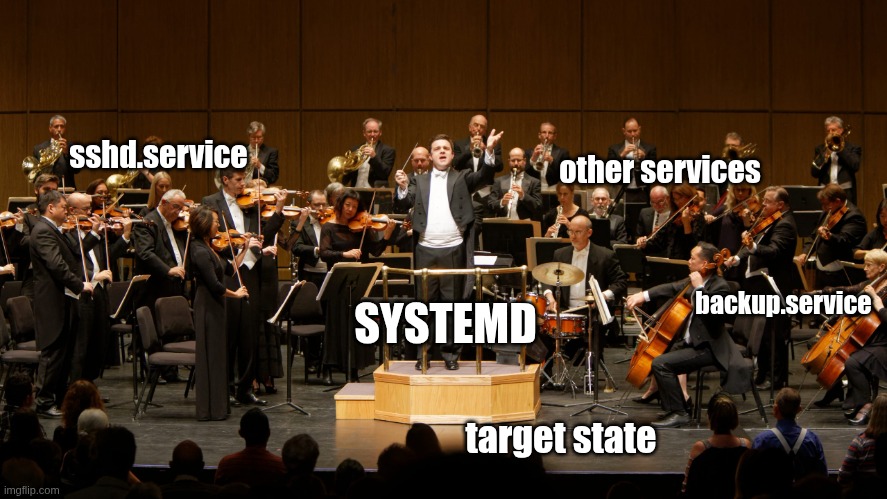
On most linux system after the kernel is done preparing the hardware devices and making them visible to the OS it give space to the a process orchestrator called systemd. Systemd is the program in charge of bringing the computer to usefull state based on the target levels it needs to reach. It does so by reading unit file for services under the /etc/systemd/system/ directory which contains sysadmin custom services.
1. Reconnaissance/Enumeration#
Our goal is to find a poorly configured systemd service that we can take advantage of. We’ll start by looking in the directory where custom services are stored. It’s often helpful to list the files by modification time (-lt) to see if anything has been added recently.
$ ls -lt /etc/systemd/system

A file named backup.service immediately stands out. This doesn’t look like a standard system service. Let’s examine its contents to understand what it does.

So, we have a service that runs a script as jean. The final and most important question is: can we modify that script? Let’s check its permissions.
$ ls -l /usr/bin/backup.sh

This is the vulnerability. The permissions -rwxrwxrwx mean that any user on the system has full read, write, and execute permissions on this file. We can change its contents to whatever we want.
c. Content of /etc/systemd/system/mutli-user.target.wants/backup.service#

d. premissions and content of /usr/bin/backup.sh#
2. Planning#
Here is what we know at this point :
- A service,
backup.service, is configured to run automatically when the system starts. - This service runs with the full permissions of the user jean.
- The service executes a script,
/usr/bin/backup.sh, which we are allowed to modify.
We will replace the contents of the backup.sh script with our own command. Instead of performing a backup, the script will copy jean’s secret file into a public directory like /tmp, where we can easily read it.
3. Exploitation#
First, let’s modify the script. We will overwrite its contents with a simple copy command.

Next, we need to trigger the service. The easiest way to trigger it is to simply restart the lab machine. When it boots back up, systemd will execute our modified script as the user jean.After the machine restarts, we can read the flag our script will have copied to the /tmp directory. All we have to do is view its contents.
$ cat /tmp/jean_secret.txt
VI Abusing pam module to impersonnate user giselle#
CONTEXT#
On a Linux system, many different programs need to authenticate users—login, su, ssh, the graphical lock screen, and so on. Instead of each program implementing its own authentication logic, they use a centralized and flexible framework called (PAM (Pluggable Authentication Modules))[https://docs.rockylinux.org/10/guides/security/pam/].These are set of security checkpoints that an application can use. An application like ssh can be configured to say, “For authentication, I need to check rule #1, then rule #2, then rule #3.” These rules are defined in configuration files located in the /etc/pam.d/ directory.Each rule in a PAM configuration file calls a specific “module” (a small library, like pam_unix.so) that performs a single task, such as checking the user’s password against /etc/shadow. By editing these configuration files, a system administrator can change the entire authentication process for a program without ever touching the program itself.
1. Reconnaissance/Enumeration#
Let’s start by exploring the /etc/pam.d/ directory to see if there are any unusual or recently modified files.$ ls -lt /etc/pam.d/
A file named custom-rule stands out. This is not a standard system file. Let’s check its contents and, more importantly, its permissions.$ ls -l /etc/pam.d/custom-rule$ cat /etc/pam.d/custom-rule
Now we need to find out which authentication process actually uses this file. We can search for any files in /etc/pam.d/ that include our custom-rule file using the grep command as follows.
$ grep -r "custom-rule" /etc/pam.d/
The search points us to /etc/pam.d/common-auth.common-auth is a central file that contains authentication rules shared by many different services (login, su, etc.). Let’s look inside this file.
$ cat /etc/pam.d/common-auth
Content of /etc/pam.d/common-auth
Inside common-auth, we find two interesting lines, one after the other:
1. auth    [success=1 default=ignore]    pam_succeed_if.so user != giselle
2. @include custom-rule
Let’s break down what that first line does:
auth: This rule applies to the authentication process.pam_succeed_if.so user != giselle: This module checks a condition. It “succeeds” if the user trying to authenticate is notgiselle. It “fails” if the user isgiselle.[success=1 default=ignore]: This is the control logic.success=1: If the module succeeds (the user is notgiselle), then skip the next 1 rule. This means the@include custom-ruleline will be completely ignored.default=ignore: If the module results in anything other than success (i.e., it fails because the user isgiselle), then just ignore this outcome and continue to the next rule.
In simple terms: The custom-rule file is only processed when the user trying to log in is giselle.
2. Planning#
- We know that the contents of the
custom-rulefile are executed only when someone tries to authenticate asgiselle. - We have permission to write whatever we want into the
custom-rulefile.
The plan is simple. We will add a new rule to the custom-rule file that will automatically grant authentication, no questions asked. There is a special PAM module perfect for this job called pam_permit.so. Its only purpose is to always return “success.”
3. Exploitation#
First, we will add our rule to the custom-rule file.
$ echo 'auth sufficient pam_permit.so' > /etc/pam.d/custom-rule
Let’s understand this rule:
auth: It applies to authentication.pam_permit.so: This module always succeeds.sufficient: This control flag means that if this module succeeds (which it always does), PAM should consider the entire authentication process immediately successful and not bother checking any further rules (like the one that asks for a password).
Now, let’s try to become giselle. We will use the su command.
$ su - giselle
Here is what happens :
- The
sucommand starts the PAM authentication process for the usergiselle. - PAM reads the
common-authfile. - The first rule (
pam_succeed_if.so user != giselle) fails, because the user isgiselle. Thedefault=ignorelogic tells PAM to simply move to the next rule. - The next rule is
@include custom-rule. PAM now reads our file. - Our rule,
auth sufficient pam_permit.so, is executed. Thepam_permit.somodule returns success. - The
sufficientflag tells PAM, “That’s good enough for me!” The authentication is declared a success, and the subsequent rules (including the one that would ask forgiselle’s password) are never processed.
Without asking for a password, the system grants us a shell as giselle. We have successfully bypassed the authentication process.
We have successfully impersonated all the user So what’s next ??
Let’s become root and tear everything apart !! shall we
 First run let’s run the following command
$ echo "user ALL=(root) ALL" | xxd | sudo xxd -r - "/etc/sudoers.d/user"
Log in as the root user and LMAO
$ sudo su root
$ rm -rf /

Gongrats !!